Best Free WordPress Plugins for 2026
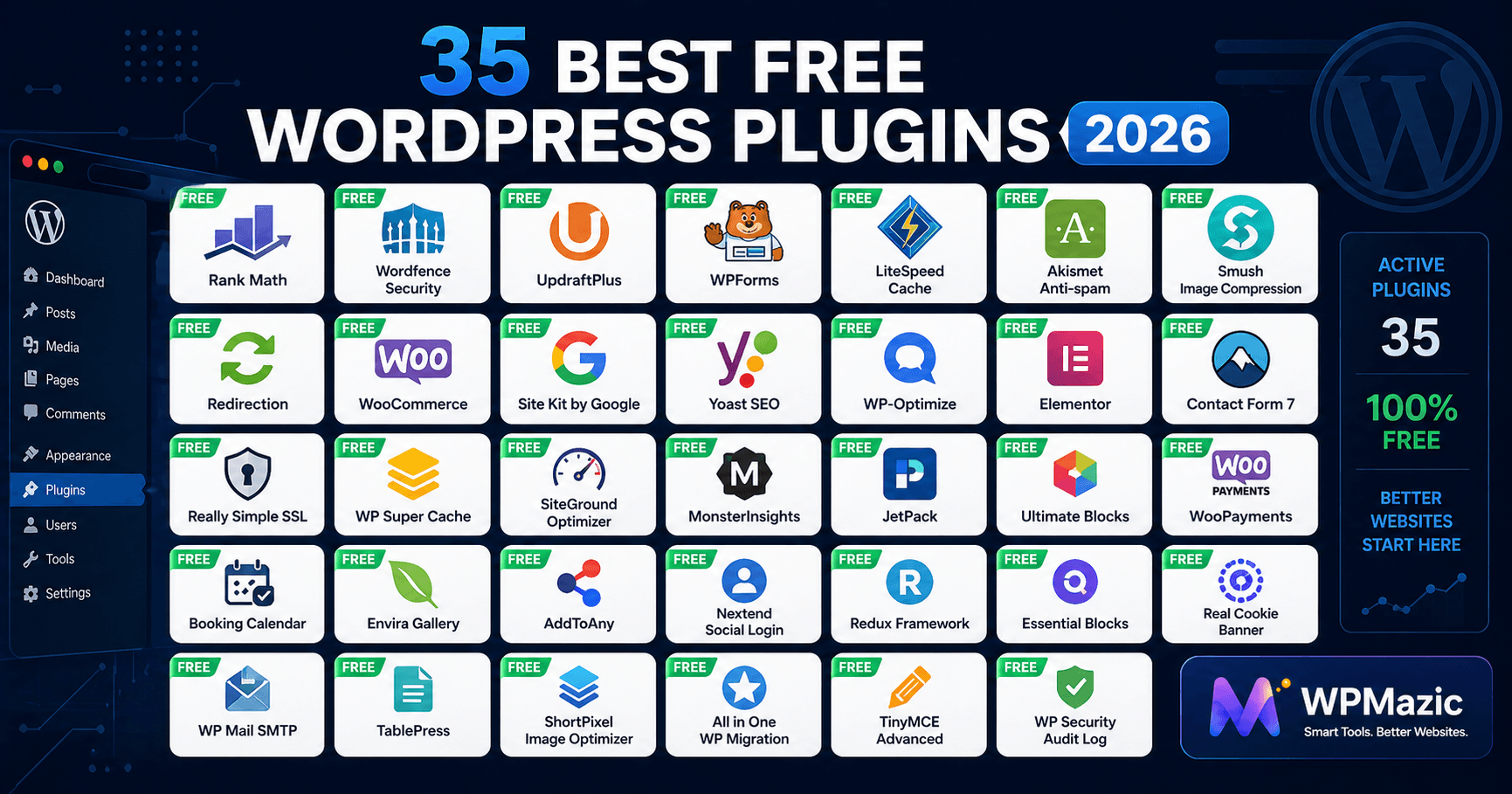
There are over 60,000 plugins in the WordPress repository. Sixty thousand. That's both the beauty and the nightmare of WordPress — unlimited possibility, and absolutely zero guarantee that the plugin you're about to install is worth having.
We've been building and maintaining WordPress sites for years. We've installed hundreds of plugins, broken live sites in the process, and spent hours debugging conflicts we never should have encountered. We've also discovered plugins that quietly transformed our workflows, doubled our page speed, and protected our sites from attack vectors we didn't even know existed.
This list is the result of that experience, combined with fresh testing across real WordPress 7.0 environments in 2026. Every plugin here meets three criteria: it works reliably, it's actively maintained, and its free version delivers genuine, standalone value — not a stripped-down teaser for a £200 premium upgrade.
We've organised everything by category so you can jump straight to what you need. And at the end, we've included a minimal starter stack — the seven plugins every WordPress site should have, regardless of niche or purpose.
Let's build a better WordPress site.
1. How to Choose the Right WordPress Plugin (Before You Install Anything)
Before we get to the list, let's spend two minutes on evaluation criteria — because the worst plugin mistakes happen when people install without thinking.
Every plugin you install adds code that executes on your site. Good plugins are lean, efficient, and do one job well. Bad plugins bloat your database, load scripts on every page (even where they're not needed), and introduce security vulnerabilities when their developers stop maintaining them.
The 6-Point Plugin Evaluation Checklist
- Active installs: A plugin with 1M+ active installs has been tested on a million real sites. Higher installs generally mean more battle-testing. Be cautious with plugins under 10,000 installs for critical functions.
- Last updated: Check the plugin's WordPress.org page. Any plugin not updated in the last 6 months should raise a flag. Security vulnerabilities in unmaintained plugins are one of the primary causes of WordPress site compromises.
- WordPress version compatibility: The plugin should show compatibility with your current WordPress version. "Tested up to: WordPress X.X" is the key line to check.
- Support forum activity: Look at the Support tab on WordPress.org. Are questions answered promptly? Active support indicates an engaged developer who takes maintenance seriously.
- 1-star reviews: Don't just read the 5-star reviews — read the 1-star ones. They reveal the plugin's failure modes and how the developer responds to problems.
- Overlapping functionality: Never install two plugins that do the same job. Two SEO plugins, two caching plugins, two security firewalls — all cause conflicts. One purpose, one plugin.
60,000+
plugins in the WordPress.org directory.
The average WordPress site uses 15–25 plugins. This list helps you pick the right 15–25.
plugins in the WordPress.org directory.
The average WordPress site uses 15–25 plugins. This list helps you pick the right 15–25.
⚠️ Critical Rule: Never download plugins from unofficial sources. Only install plugins from WordPress.org or directly from verified developer websites. Nulled (pirated) premium plugins are one of the leading vectors for WordPress malware infections.
2. Best Free SEO Plugins for WordPress
SEO plugins are the single most impactful plugins on this entire list. Without one, WordPress has no native way to manage title tags, meta descriptions, XML sitemaps, schema markup, or canonical URLs — all of which are essential for Google rankings. Install exactly one SEO plugin and configure it thoroughly.
🥉 WPMazic SEO
WPMazic SEO is built for WordPress users who want a comprehensive, clean SEO dashboard without the complexity of enterprise-tier plugins. It handles all the fundamentals — meta tags, XML sitemaps, schema markup, Open Graph, canonical URLs — through a streamlined interface that prioritises simplicity and performance. It's lightweight by design, avoiding the script bloat that heavier SEO plugins can introduce.
- Clean, minimal dashboard — no feature overwhelm
- Full meta tag and Open Graph control
- XML sitemap generation and submission
- Schema markup for Articles, FAQs, and Local Business
- Lightweight — minimal performance footprint
- Deep integration with other WPMazic tools
Best for: WordPress users who want a fast, focused SEO plugin without feature bloat. Excellent starting point for beginners who find Rank Math and Yoast overwhelming.
🥇 Rank Math SEO 2026 Top Pick
Rank Math has become the most feature-rich free SEO plugin available in 2026 — and it's not particularly close. What other plugins charge for, Rank Math includes in its free tier: unlimited keyword tracking per post, a comprehensive redirect manager, advanced schema markup for 20+ content types, AI-powered content suggestions, and a Google Search Console integration that surfaces your performance data inside WordPress.
Why it leads in 2026: The built-in AI content analysis (powered by Groq) gives real-time suggestions for improving your content's relevance, readability, and completeness — directly in the post editor. This is a premium-level feature that costs nothing.
- Track up to unlimited focus keywords per post (free)
- Advanced schema markup — Articles, FAQs, Products, Recipes, Events, Local Business
- Built-in redirect manager (301, 302, 307 redirects)
- AI content analysis powered by Google's NLP API
- Google Search Console integration
- Automatic XML sitemap generation
- WooCommerce SEO support in free tier
Best for: All WordPress sites wanting maximum free features. Particularly strong for content marketers and eCommerce sites.
Not ideal for: Absolute beginners who may find the feature depth overwhelming initially.
🥈 Yoast SEO
Yoast SEO remains the most widely installed WordPress plugin of any kind — over 10 million active installs is a record no other plugin comes close to matching. Its free version offers solid foundational SEO: meta tag control, XML sitemaps, readability analysis, canonical tags, and Open Graph tags. The traffic light system (green/orange/red indicators as you write) makes it the most beginner-friendly SEO plugin available.
- Real-time SEO and readability analysis as you write
- Traffic light feedback system — visual and intuitive
- Automatic canonical tags and XML sitemaps
- Open Graph and Twitter Card meta tags
- Breadcrumb control
- Largest knowledge base and community support of any SEO plugin
Best for: Beginners, writers, and sites that prioritise content quality feedback over advanced schema features.
🎯 Critical Reminder: Install only ONE SEO plugin. Running Rank Math and Yoast simultaneously creates duplicate sitemaps, conflicting canonical tags, and competing schema markup — all of which confuse search engines and can actively harm rankings. Pick one and commit.
3. Best Free Speed & Performance Plugins
Page speed is a direct Google ranking factor through Core Web Vitals. Slow sites lose visitors before they even read your content — 53% of mobile users abandon pages taking more than 3 seconds to load. Speed plugins are non-negotiable for competitive rankings in 2026.
🥇 LiteSpeed Cache Best Free Caching
LiteSpeed Cache is the most powerful free caching plugin available for WordPress — full stop. If your hosting runs LiteSpeed servers (Hostinger, A2 Hosting, Namecheap, and many others), this plugin delivers performance improvements that rival WP Rocket (which costs $59/year) at zero cost. Its feature set is extraordinary for a free plugin: server-level page caching, CSS/JS minification, lazy loading, image optimisation, CDN support, and database optimisation.
- Server-level caching (dramatically faster than PHP-level caching)
- CSS, JavaScript, and HTML minification
- WebP image conversion and lazy loading
- CDN integration with QUIC.cloud (free tier available)
- Database optimisation and cleanup tools
- Works on any host but performs best on LiteSpeed servers
Best for: Sites on LiteSpeed-compatible hosting. The best free performance upgrade available in 2026.
🥈 W3 Total Cache
W3 Total Cache is the most established free caching plugin for Apache and Nginx servers, giving it broad compatibility across virtually all hosting environments. The free version handles page caching, browser caching, database caching, object caching, and CDN integration. It requires more configuration than LiteSpeed Cache but offers more granular control for technically-minded users.
- Page caching, object caching, database caching
- CDN integration (Cloudflare, MaxCDN, and others)
- Browser caching with cache control headers
- HTTP/2 server push support
- Works on all hosting types including shared hosting
Best for: Sites on Apache/Nginx hosting where LiteSpeed isn't available. Developers who want granular caching control.
🥉 Smush — Image Optimisation
Unoptimised images are the most common cause of poor Core Web Vitals scores on WordPress sites. Smush automatically compresses images on upload, converts them to WebP, and enables lazy loading — all without degrading visible quality. The free version handles unlimited image optimisation with lossless and lossy compression options.
- Auto-compression on upload — set and forget
- Bulk-optimise existing images
- Lazy loading for images and iFrames
- WebP conversion (free tier)
- Wrong-size image detection
Best for: Every WordPress site with images — which is every WordPress site.
Cloudflare (Free CDN Integration)
Strictly speaking, Cloudflare is a service rather than a WordPress plugin — but its free plan is one of the most impactful free performance tools available to WordPress site owners. It routes your traffic through a global CDN network, provides free SSL, DDoS protection, and can reduce your page load times for international visitors by 50%+. Most hosting providers offer one-click Cloudflare integration. The WordPress-specific plugin allows cache purging directly from your dashboard.
- Global CDN — faster load times for every geographic location
- Free SSL certificate
- Basic DDoS protection
- Cache purge from WordPress dashboard
- Free tier handles unlimited bandwidth
4. Best Free WordPress Security Plugins
WordPress powers 43% of all websites — making it the most-targeted CMS for automated attacks. A security plugin is not optional. The question is only which one. In 2026, the threat landscape includes increasingly sophisticated brute-force attacks, plugin-based malware injection, and credential-stuffing bots. Your security stack needs to address all three.
🥇 Wordfence Security Most Popular
Wordfence is the most installed WordPress security plugin in the world. Its free tier includes a web application firewall (WAF), malware scanner, login security (brute force protection, two-factor authentication), and a live traffic monitor that shows you real-time bot and human activity on your site. The firewall rule updates are delayed by 30 days on the free tier — a meaningful limitation for high-risk business sites, but sufficient for personal sites and small businesses.
- Web Application Firewall (WAF) — blocks known threats
- Malware scanner — deep file and database scanning
- Brute force login protection and rate limiting
- Two-factor authentication for admin logins
- Live traffic monitor with bot detection
- Email alerts for critical security events
- Firewall rules delayed 30 days vs. real-time on premium
Best for: Most WordPress sites. Comprehensive protection without any configuration expertise required.
🥈 Solid Security (Formerly iThemes Security)
Solid Security focuses on hardening your WordPress installation against the most common attack vectors, particularly around user accounts and login security. Its free version is excellent for sites that want strong login protection and account hardening without the system resource overhead of a full malware scanner running continuously.
- Login lockdown after failed attempts
- Two-factor authentication
- Strong password enforcement
- File change detection
- Database backup on demand
- Hide WordPress login URL from bots
Best for: Sites that already use Cloudflare for WAF and want focused account/login hardening as a complement.
🥉 Akismet Anti-Spam Essential
Akismet is developed by Automattic (the company behind WordPress.com) and has been filtering spam since 2005. It uses a global spam intelligence database fed by millions of sites to automatically filter comment spam and form submission spam. For personal and non-commercial sites, Akismet is free. Commercial sites require a paid plan — well worth it given how much time manual spam filtering wastes.
- Automatic spam filtering — no manual moderation
- Filters comment spam and contact form spam
- Global spam intelligence database
- Spam statistics dashboard
- Pre-installed with every WordPress instance
- Free for personal sites; commercial sites need paid plan
Best for: Every WordPress site with comments or contact forms enabled.
5. Best Free WordPress Backup Plugins
No backup strategy means one bad update, one hacked plugin, or one server failure stands between you and losing everything you've built. A backup plugin is non-negotiable. The best backup plugin is the one you've actually configured and tested.
🥇 UpdraftPlus 3M+ Installs
UpdraftPlus is the gold standard for free WordPress backups. The free version supports scheduled automatic backups of your entire site — files, database, and all — with direct upload to remote storage including Google Drive, Dropbox, Amazon S3, Rackspace, FTP, and email. Restoration is equally straightforward: a one-click restore directly from the WordPress dashboard. There's genuinely no excuse for not having this installed and configured.
- Scheduled automatic backups (daily, weekly, fortnightly)
- Remote storage: Google Drive, Dropbox, S3, FTP, email
- One-click restoration from the WordPress dashboard
- Backs up files AND database separately
- Works with multisite (free, single sites)
- Manual backup on demand — essential before major updates
Best for: Every WordPress site — this is a universal must-have with no equivalent at the same quality level.
🥈 BackWPup
BackWPup is a strong free alternative to UpdraftPlus, particularly praised for its database optimisation features (included alongside backup scheduling) and its granular scheduling control. It supports all major remote storage destinations and exports backups as .zip or .tar archives.
- Full site backup to remote destinations
- Database optimisation and repair tools
- XML export of WordPress tables
- Completely free — no paid tier required
Best for: Developers who want full database control alongside backup functionality.
🎯 Backup Best Practice: Schedule daily database backups and weekly full-site backups. Always run a manual backup immediately before any major WordPress update, plugin update, or theme change. Store backups in at least two separate locations — one cloud service and one email download. A backup stored only on your server offers zero protection if the server itself is compromised.
6. Best Free WordPress Form Plugins
Contact forms are the primary lead generation tool on most WordPress sites. A good form plugin makes the difference between capturing a potential customer and watching them leave without a trace.
🥇 WPForms Lite Best Beginner Form
WPForms Lite is the most beginner-friendly contact form plugin for WordPress. Its drag-and-drop form builder requires no HTML knowledge, pre-built templates cover the most common use cases (contact, newsletter signup, booking request), and its anti-spam integration with hCaptcha keeps submissions clean. The free tier is generous enough for most small business and blog use cases.
- True drag-and-drop builder — no code required
- Pre-built templates for contact, newsletter, and booking forms
- GDPR-compliant form builder
- Email notifications on submission
- hCaptcha anti-spam integration
- Gutenberg block for easy embedding
Best for: Beginners, small businesses, and bloggers who need reliable contact forms without technical expertise.
🥈 Contact Form 7
Contact Form 7 is the most installed WordPress plugin of all time and has been a reliable workhorse for over a decade. It's lightweight, flexible, and endlessly customisable — but requires basic HTML and shortcode knowledge to set up and style. For developers and technically-comfortable users, it's the most flexible free form option. For beginners, WPForms Lite is a better starting point.
- Extremely lightweight — minimal performance impact
- Multiple forms on one page
- CAPTCHA, Akismet, and Flamingo integration
- Highly customisable with HTML
- No drag-and-drop — requires basic HTML knowledge
- Does not store submissions by default (use Flamingo add-on)
Best for: Developers and technical users who want maximum flexibility with minimal overhead.
🥉 HubSpot All-in-One Marketing
The HubSpot plugin is unique on this list: it combines forms, live chat, email marketing, and a free CRM in a single plugin. Every form submission automatically feeds into HubSpot's free CRM, creating a contact record and enabling email follow-up sequences — all at zero cost. If lead capture and follow-up are priorities, this plugin delivers disproportionate value for a free offering.
- Forms + live chat + CRM in one free plugin
- Automatic lead capture into HubSpot CRM
- Email sequences for lead nurturing (free)
- Pop-up form builder
- Heavier than dedicated form plugins — loads HubSpot scripts
Best for: Small businesses and agencies that want built-in CRM and email follow-up alongside contact forms.
7. Best Free Image Optimisation Plugins
🥇 ShortPixel Image Optimiser
ShortPixel consistently delivers the best compression quality-to-size ratio of any image optimisation plugin. The free tier processes 100 images per month — sufficient for new sites or those with modest upload volumes. It supports JPEG, PNG, GIF, and WebP conversion, and can bulk-process your existing media library.
- Best-in-class compression quality
- Lossy, lossless, and glossy compression modes
- WebP and AVIF conversion
- Bulk optimisation of existing media library
- PDF compression support
- Free tier limited to 100 images/month
🥈 Imagify
Imagify is developed by the team behind WP Rocket and shares the same philosophy: power and simplicity in equal measure. The free tier includes 20MB of monthly image processing — sufficient for low-to-moderate upload volumes. Its one-click bulk optimisation and three compression modes (normal, aggressive, ultra) give good control over the quality vs. size trade-off.
- Three compression levels for different use cases
- Automatic on-upload compression
- WebP conversion and display
- One-click bulk optimisation
- Free tier limited to 20MB/month
8. Best Free Analytics & Tracking Plugins
🥇 Site Kit by Google Official Google Plugin
Site Kit is Google's official WordPress plugin, bringing data from Google Analytics 4, Google Search Console, PageSpeed Insights, and (optionally) Google AdSense into a single dashboard inside your WordPress admin. For beginners, this is the most practical way to monitor site performance — all four Google tools in one place, without needing to log into multiple separate platforms.
- Google Analytics 4 setup in minutes
- Google Search Console integration
- PageSpeed Insights per-page scores
- AdSense revenue reporting (if applicable)
- Unified dashboard inside WordPress admin
- Officially maintained by Google
Best for: Beginners who want all Google data in one place without managing multiple platform logins.
🥈 MonsterInsights Lite
MonsterInsights connects Google Analytics 4 to WordPress and surfaces the most useful reports directly in your dashboard — top pages, traffic sources, device breakdown, and more — in a more polished, user-friendly format than Site Kit's native reports. The free version covers the analytics reporting most site owners need without upgrading.
- Clean GA4 reports inside WordPress
- Top pages and posts report
- Traffic source breakdown
- Real-time user count
- Enhanced eCommerce tracking (paid)
🥉 Independent Analytics (Privacy-First Option)
For EU-focused sites that need GDPR-compliant analytics without cookie consent banners, Independent Analytics is one of the best options in 2026. It tracks page views, session data, traffic sources, and device types entirely server-side — no cookies, no third-party data transmission, no consent requirement. The free version covers most analytics needs for small-to-medium sites.
- No cookies — no GDPR consent banner required
- All data stored on your own server
- Clean, real-time dashboard inside WordPress
- Referrer and UTM tracking
- WooCommerce revenue tracking (free)
Best for: European sites, privacy-conscious site owners, and anyone wanting cookieless analytics.
9. Best Free eCommerce Plugins
🥇 WooCommerce Industry Standard
WooCommerce is the world's most popular eCommerce platform — period. The core plugin is completely free and transforms any WordPress site into a fully functional online store capable of selling physical products, digital downloads, subscriptions, and services. It handles inventory, product variations, payment gateways (PayPal, Stripe via free extensions), shipping calculations, tax management, and order management out of the box.
- Full eCommerce platform — physical and digital products
- PayPal and Stripe payment gateways (free extensions)
- Inventory management, product variations, and attributes
- Flexible shipping zones and rates
- Tax calculation (manual or automated)
- Thousands of free and paid extensions in the WooCommerce marketplace
- Full Rank Math SEO integration in free tier
Best for: Any WordPress site needing eCommerce functionality — from solo creators selling digital products to businesses running full product catalogues.
🥈 Easy Digital Downloads (EDD) Lite
Easy Digital Downloads is purpose-built for selling digital products — files, software, PDFs, courses, and plugins. If you're not selling physical products, EDD is lighter and simpler than WooCommerce, with a focused feature set that avoids unnecessary complexity. The free version supports unlimited products, purchase history, and basic payment gateway integration.
- Optimised specifically for digital product sales
- Clean purchase history and download management
- Customer management system
- Discount code creation
- Lighter than WooCommerce for digital-only stores
10. Best Free Utility & Admin Plugins
🥇 Redirection
Redirection is the most reliable free redirect manager for WordPress. It manages 301 redirects, tracks 404 errors, and logs all redirect activity — essential for maintaining SEO authority when you rename pages, restructure your site, or delete old content. Every broken link is a lost ranking signal. Redirection makes fixing them straightforward without touching .htaccess files.
- Manage 301, 302, and 307 redirects
- Automatic redirect on post slug change
- 404 error logging and monitoring
- Import/export redirect rules
- Regex-based redirect rules for advanced use cases
🥈 Query Monitor
Query Monitor is a developer's best friend — a debugging and performance profiling tool that reveals every database query, PHP error, slow hook, and script loading on your site. It's invaluable for identifying which plugins are creating performance bottlenecks, diagnosing errors, and debugging custom code. Only recommended for developers and technically-minded site owners.
- Database query profiling — see all queries per page
- Plugin-specific performance reporting
- PHP error and warning display
- Hook and filter execution analysis
- REST API monitoring
🥉 WP Maintenance Mode & Coming Soon
Every site needs a maintenance mode option — for updates, redesigns, and emergency situations. This plugin creates a clean, customisable maintenance screen for site visitors while you work, while keeping full access for logged-in admins. It also doubles as a coming soon page for new site launches.
- Customisable maintenance and coming soon pages
- Admin bypass — you see the site, visitors see the page
- Email subscriber capture on coming soon pages
- Social media link integration
Duplicate Page
Duplicate Page is a beautifully simple plugin that adds one critical function WordPress lacks natively: the ability to duplicate any post, page, or custom post type with one click. Invaluable when creating multiple similar pages, building templates, or testing content changes without affecting the live version.
- One-click duplication of posts, pages, and custom post types
- Duplicated content saved as draft by default
- Copies all content, settings, and featured images
- Works with any page builder
11. Best Free Content & Editor Plugins
🥇 Classic Editor
Classic Editor restores the traditional WordPress editing interface for sites that depend on legacy compatibility. In WordPress 7.0, it remains fully supported and is officially maintained by the WordPress core team. If you're managing a site with older themes, custom meta boxes, or workflows built around the classic editor — this is your lifeline. Note that Classic Editor users won't have access to WordPress 7.0's real-time collaboration features, which are Gutenberg-only.
- Officially maintained by WordPress core team
- Full compatibility with legacy themes and plugins
- TinyMCE editor interface
- Per-user editor selection option
- No access to Phase 3 collaboration features in WP 7.0
🥈 Elementor (Free)
Elementor is the most popular WordPress page builder, enabling drag-and-drop visual design without any coding. The free version includes a solid widget library, over 40 free templates, and a powerful visual editing canvas. The premium tier unlocks additional widgets, theme builder functionality, and WooCommerce integration. For most beginners building landing pages and custom layouts, the free tier covers the essentials.
- True drag-and-drop visual editor
- 40+ free templates
- Responsive design controls
- 30+ free widgets (buttons, forms, image boxes, etc.)
- Can add significant performance overhead — optimise carefully
🥉 TablePress
Creating complex, styled tables in WordPress without a plugin is painful. TablePress solves this elegantly — it provides a spreadsheet-like interface for building tables, which are then embedded in any post or page via shortcode. Tables are responsive, sortable by readers, and exportable. Invaluable for comparison tables, pricing grids, and data presentations.
- Spreadsheet-style table editor
- Sortable and filterable by site visitors
- Responsive tables for mobile
- Import from Excel and CSV
- Embed in any post, page, or widget
Broken Link Checker
Broken internal and external links damage user experience, waste crawl budget, and send negative quality signals to Google. Broken Link Checker continuously monitors all links on your site and sends email alerts when broken links are detected. You can fix links directly from the plugin dashboard without opening each post individually.
- Monitors all links on your site continuously
- Email alerts for newly broken links
- Fix links directly from the dashboard
- Checks internal and external links
- Can increase server load on large sites — configure to run during off-peak hours
12. The 7-Plugin Minimal Starter Stack
If you're starting a new WordPress site and want the essential minimum, these seven plugins cover 90% of what every site needs. Install these first, configure them properly, and add category-specific plugins as your needs grow.
| # | Plugin | Category | Why It's Essential |
|---|---|---|---|
| 1 | Rank Math / WPMazic SEO / Yoast | SEO | Google cannot properly index your site without an SEO plugin managing meta tags, sitemaps, and schema |
| 2 | Wordfence Security | Security | Firewall and malware protection against the daily automated attacks every WordPress site faces |
| 3 | UpdraftPlus | Backup | Your insurance policy — automated backups to remote storage mean no update or attack is irreversible |
| 4 | LiteSpeed Cache / W3 Total Cache | Speed | Caching reduces server load and improves Core Web Vitals scores — a direct ranking factor |
| 5 | Akismet Anti-Spam | Spam | Automatic spam filtering for comments and forms — saves hours of manual moderation |
| 6 | WPForms Lite | Forms | Every site needs a contact form — the most beginner-friendly free option available |
| 7 | Site Kit by Google | Analytics | Google Analytics + Search Console + PageSpeed Insights in one dashboard — measure everything |
13. Complete Plugin Comparison Table
| Plugin | Category | Free? | Installs | WP 7.0 | Best For |
|---|---|---|---|---|---|
| Rank Math | SEO | ✅ Yes | 3M+ | ✅ | Most users |
| Yoast SEO | SEO | ✅ Free tier | 10M+ | ✅ | Beginners |
| WPMazic SEO | SEO | ✅ Yes | Growing | ✅ | Clean, fast setup |
| LiteSpeed Cache | Speed | ✅ Yes | 6M+ | ✅ | LiteSpeed hosts |
| W3 Total Cache | Speed | ✅ Free tier | 1M+ | ✅ | Apache/Nginx hosts |
| Smush | Images | ✅ Free tier | 1M+ | ✅ | Image-heavy sites |
| ShortPixel | Images | ✅ 100/mo | 400K+ | ✅ | Best compression |
| Wordfence | Security | ✅ Free tier | 5M+ | ✅ | All sites |
| Solid Security | Security | ✅ Free tier | 900K+ | ✅ | Login hardening |
| Akismet | Spam | ✅ Personal | 5M+ | ✅ | All sites |
| UpdraftPlus | Backup | ✅ Free tier | 3M+ | ✅ | All sites |
| BackWPup | Backup | ✅ Yes | 700K+ | ✅ | Developers |
| WPForms Lite | Forms | ✅ Free tier | 6M+ | ✅ | Beginners |
| Contact Form 7 | Forms | ✅ Yes | 10M+ | ✅ | Developers |
| HubSpot | Forms/CRM | ✅ Yes | 200K+ | ✅ | Lead capture |
| Site Kit by Google | Analytics | ✅ Yes | 3M+ | ✅ | Beginners |
| MonsterInsights Lite | Analytics | ✅ Free tier | 3M+ | ✅ | GA4 reports |
| Independent Analytics | Analytics | ✅ Free tier | 30K+ | ✅ | GDPR/Privacy |
| WooCommerce | eCommerce | ✅ Yes | 8M+ | ✅ | All stores |
| EDD Lite | eCommerce | ✅ Free tier | 50K+ | ✅ | Digital products |
| Redirection | Utility/SEO | ✅ Yes | 2M+ | ✅ | All sites |
| Query Monitor | Dev/Performance | ✅ Yes | 100K+ | ✅ | Developers |
| Classic Editor | Editor | ✅ Yes | 5M+ | ✅ | Legacy sites |
| Elementor | Page Builder | ✅ Free tier | 10M+ | ✅ | Visual design |
| TablePress | Content | ✅ Yes | 800K+ | ✅ | Data tables |
| Broken Link Checker | Content/SEO | ✅ Yes | 700K+ | ✅ | Link health |
| Imagify | Images | ✅ 20MB/mo | 500K+ | ✅ | Image quality |
| WP Maintenance Mode | Utility | ✅ Yes | 700K+ | ✅ | Under construction |
| Duplicate Page | Utility | ✅ Yes | 1M+ | ✅ | Content workflow |
| Imagify | Images | ✅ 20MB/mo | 500K+ | ✅ | Image speed |
14. 7 Plugin Mistakes That Kill WordPress Sites
The wrong approach to plugins is more dangerous than having no plugins at all. Here are the seven most common — and most damaging — plugin mistakes WordPress site owners make.
Mistake 1: Installing Two SEO Plugins
This is the most common serious plugin mistake. Running Rank Math and Yoast simultaneously creates duplicate XML sitemaps, conflicting canonical tags, competing schema markup, and doubled Open Graph tags. Google sees this as contradictory signals and may demote affected pages. Choose one SEO plugin, configure it thoroughly, and never add a second.
Mistake 2: Installing Plugins That Haven't Been Updated in Years
An unmaintained plugin is a security liability. WordPress, PHP, and MySQL all evolve — a plugin frozen two years ago may have known vulnerabilities that have been catalogued in public exploit databases. Before installing any plugin, check the "Last Updated" date on its WordPress.org page. Avoid anything not updated in the past 6–12 months for security-critical functions.
Mistake 3: Installing Plugins From Outside WordPress.org Without Vetting
Nulled (pirated) premium plugins are the single most common source of WordPress malware infections. The "free" version of a £200 plugin that was uploaded to a file-sharing site almost certainly contains a backdoor. Only install plugins from WordPress.org or directly from the official developer's website.
Mistake 4: Never Deactivating Unused Plugins
Deactivated plugins still exist on your server — and their code can still be exploited. If you're not using a plugin, delete it entirely. An unused plugin that's deactivated provides no benefit and represents pure risk. Every plugin audit should result in deletions, not just deactivations.
Mistake 5: Ignoring Plugin Update Notifications
Plugin updates contain security patches. Ignoring them for weeks or months leaves known vulnerabilities on your site. Enable automatic updates for trusted, well-established plugins (your backup plugin should always be auto-updated). For larger updates, test on a staging site first — but never delay security patches.
Mistake 6: Using Page Builder Plugins on Lightweight Themes
Page builders like Elementor add significant JavaScript and CSS overhead. Combining a heavy page builder with an already-bloated theme creates performance disaster. If you use Elementor, pair it with a lightweight theme specifically designed for it (Hello Elementor, Astra). Test your Core Web Vitals scores before and after installation.
Mistake 7: Not Testing Plugin Compatibility Before Updating WordPress
Major WordPress updates (especially WordPress 7.0 with its DataViews and React 19 changes) can break plugins that haven't been updated for compatibility. Always test major WordPress core updates on a staging environment first. Check each plugin's changelog for compatibility notes. Wait 1–2 weeks after a major WordPress release for plugin authors to push compatibility updates.
15. WordPress 7.0 Plugin Compatibility Guide
WordPress 7.0's DataViews admin redesign and React 19 upgrade are the two changes most likely to affect plugin compatibility. Here's what to check.
🔍 WordPress 7.0 Compatibility Status: All major plugins in this guide have confirmed WordPress 7.0 compatibility updates. The highest-risk plugins are those that: (1) extensively customise the WordPress admin interface (affected by DataViews), (2) include custom Gutenberg blocks (affected by React 19), or (3) modify WP List Tables directly.
| Risk Level | Plugin Type | What to Check | Action |
|---|---|---|---|
| 🔴 High | Plugins that add custom admin list views | DataViews compatibility in changelog | Test on staging before updating |
| 🔴 High | Custom Gutenberg block plugins | React 19 compatibility | Check developer release notes |
| 🟡 Medium | Admin customisation / dashboard plugins | UI rendering in WP 7.0 | Test admin functionality on staging |
| 🟢 Low | SEO, backup, security, form plugins | Standard WP 7.0 compatibility tag | Update, then verify functionality |
| 🟢 Low | Classic Editor, WooCommerce, caching | Already updated for 7.0 | Update normally |
🎯 Upgrade Strategy: Before updating to WordPress 7.0, create a staging site, run the update there first, and test all key plugin functionality. Pay particular attention to any plugins that modify the Posts, Pages, or Media admin screens — these are the areas most changed by DataViews. Read our full WordPress 7.0 features guide for the complete compatibility breakdown.
16. Frequently Asked Questions
Q1: How many plugins should I install on my WordPress site?
Quality matters more than quantity. A well-coded plugin that does one thing efficiently has minimal performance impact. Most WordPress sites run 15–25 active plugins without issues. The key is to audit regularly: remove anything you're not actively using, and avoid installing multiple plugins that do the same job.
Q2: What is the best free SEO plugin for WordPress in 2026?
Rank Math leads in features — its free tier includes unlimited keyword tracking, advanced schema markup, a redirect manager, and AI content suggestions. Yoast SEO wins on beginner-friendliness with its traffic light real-time feedback. WPMazic SEO is the best choice for users who want a clean, lightweight solution without feature overwhelm. Never install two SEO plugins simultaneously.
Q3: What is the best free WordPress security plugin?
Wordfence Security is the most comprehensive free security plugin, combining a web application firewall, malware scanner, and login protection. For sites that already use Cloudflare as a WAF, Solid Security's login hardening features complement Cloudflare's perimeter protection well. Akismet is essential for any site with comments or contact forms to block spam.
Q4: What is the best free caching plugin for WordPress?
LiteSpeed Cache is the best free caching plugin if your host uses LiteSpeed servers — its server-level caching matches WP Rocket's performance at zero cost. For Apache/Nginx hosting, W3 Total Cache is the most reliable free alternative. Always check your host's recommended caching plugin, as some managed WordPress hosts have their own optimised caching built in and advise against adding a third-party caching plugin.
Q5: Should I use WPForms Lite or Contact Form 7?
For beginners: WPForms Lite. Its drag-and-drop builder requires no coding knowledge, and pre-built templates cover most common form types. For developers wanting maximum flexibility and the lightest possible footprint: Contact Form 7. The critical note for Contact Form 7 users — install the Flamingo add-on to store form submissions in your database, since Contact Form 7 doesn't do this natively.
Q6: Do free plugins slow down WordPress?
Poorly coded free plugins can, yes. But plugin quality (not quantity) is the determining factor. The plugins on this list are all well-maintained and performance-conscious. To identify any plugin creating a performance bottleneck, install Query Monitor (free) and check which plugins are generating the most database queries or loading the heaviest scripts. Always test Core Web Vitals before and after installing new plugins.
Q7: What plugins do I need for a brand new WordPress site?
The 7-plugin starter stack: one SEO plugin (Rank Math, Yoast, or WPMazic SEO), Wordfence Security, UpdraftPlus, a caching plugin (LiteSpeed Cache or W3 Total Cache), Akismet Anti-Spam, WPForms Lite, and Site Kit by Google. These seven cover the fundamental needs of virtually every WordPress site at zero cost.
Q8: Is Rank Math really better than Yoast SEO?
For feature depth, yes — Rank Math's free tier includes capabilities that require Yoast Premium. For beginner-friendliness and guided content optimisation, Yoast's real-time feedback system is unmatched. Both are excellent choices; the right pick depends on whether you prioritise features (Rank Math) or guided simplicity (Yoast). The only wrong choice is installing both.
Q9: Are free WordPress plugins safe?
Plugins from the official WordPress.org directory go through a basic security review process and are generally safe. The risks come from: abandoned plugins not updated in 12+ months (potential unpatched vulnerabilities), plugins from unofficial sources (potential malware), and plugins with very few installs and no support forum activity (less battle-tested). Stick to established plugins with strong install counts, recent updates, and active support forums.
Q10: What plugins are compatible with WordPress 7.0?
All major plugins in this guide — including Rank Math, Yoast, Wordfence, UpdraftPlus, WPForms, LiteSpeed Cache, Akismet, WooCommerce, Redirection, and Site Kit — have confirmed WordPress 7.0 compatibility. Always check the "Tested up to" version on each plugin's WordPress.org page, and test major WordPress updates on a staging environment before applying them to live sites.
Q11: Do I need a separate analytics plugin or can I just use Google Analytics directly?
You don't strictly need a plugin — GA4 can be added via a code snippet in your theme or through Google Tag Manager. However, a plugin like Site Kit by Google or MonsterInsights Lite simplifies setup, ensures reliable tracking across all pages, and surfaces analytics data inside your WordPress dashboard. For most beginners, Site Kit is the simplest free setup. For EU-focused sites needing cookieless analytics, Independent Analytics is the best privacy-compliant free option.
Q12: Can I use Elementor with any WordPress theme?
Elementor works with most WordPress themes, but performs best with themes specifically designed for it (Hello Elementor is Elementor's official companion theme, built for maximum compatibility and minimum overhead). Using Elementor with heavyweight multipurpose themes can create significant performance issues — you end up loading both the theme's design assets and Elementor's design system simultaneously, which bloats page size considerably.
Q13: How do I know if a plugin is causing my site to slow down?
Install Query Monitor (free) and navigate to different pages on your site. It shows database queries per page, which plugins generated them, and load times per plugin. Also run Google PageSpeed Insights before and after installing new plugins to measure their impact on Core Web Vitals. If a plugin adds more than 0.5 seconds to your page load time, consider whether its functionality justifies the performance cost.
Q14: What's the difference between deactivating and deleting a plugin?
Deactivating a plugin turns off its functionality but leaves its files on your server and its settings in your database. Deleting a plugin removes its files — and depending on how the plugin was built, may also remove its database tables and settings. Always back up before deleting plugins, as you may not be able to restore their data afterward. If you're not actively using a plugin, delete it — deactivated plugins still represent a security surface area on your server.
17. Key Takeaways & Summary
🎯 Everything You Need to Remember
- Install exactly one SEO plugin — Rank Math for features, Yoast for beginners, WPMazic SEO for simplicity. Never install two.
- The 7-plugin starter stack covers 90% of every WordPress site's needs: SEO + Security + Backup + Speed + Spam + Forms + Analytics.
- Plugin quality beats plugin quantity — 25 excellent plugins outperform 10 mediocre ones, and have less performance impact than 5 poorly-coded ones.
- LiteSpeed Cache is the best free performance upgrade available for any site on LiteSpeed hosting.
- Never skip backups — UpdraftPlus is free and takes 10 minutes to configure. Not having it means every update is a gamble.
- Maintain your plugins — unmaintained plugins are security liabilities. Review and prune your plugin list quarterly.
- Always test WordPress core updates on staging — especially major releases like WordPress 7.0 with DataViews and React 19 changes.
- Only install from WordPress.org or verified developer websites. Nulled plugins are the most common source of WordPress malware.
- Deactivating isn't enough — delete plugins you're not using to eliminate unnecessary security risk.
- Check compatibility before every major update — use the "Tested up to" field on WordPress.org and your plugin changelogs.
The beauty of WordPress isn't that it comes with everything — it's that you can build exactly what you need using exactly the tools that fit. The plugins on this list have earned their place through reliability, active maintenance, and genuine free value. Install the starter stack, add category-specific plugins as your site grows, and audit your plugin list at least twice a year.
A lean, well-chosen plugin stack is the foundation of a fast, secure, SEO-friendly WordPress site. That foundation is available to you completely free.
https://wpmazic.com/best-free-wordpress-plugins/?fsp_sid=87


Comments
Post a Comment